
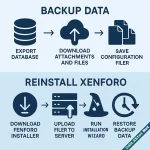

To fix errors on your XenForo forum, you need to do two main things: **back up your data** and **reinstall XenForo**. Below is a detailed guide to help you do this safely without losing data.
1. Back Up XenForo Forum Data
**a) Back up the database (MySQL):**
- Access phpMyAdmin or use SSH, select the database used by XenForo.
- Click "Export" to export a `.sql` file (choose "Quick" mode and SQL format).
- If using SSH, run:
```bash
mysqldump -u username -p dbname > xenforo_backup.sql
```
- Save the backup file to your computer or upload it to Google Drive/Dropbox.
**b) Back up the code directory and attachments:**
- Use FTP, File Manager, or SSH to download the entire directory where XenForo is installed (usually `public_html` or an equivalent directory).
- Make sure to back up these folders:
- `/src/`, `/library/`, `/internal_data/`, `/data/`, `/styles/`
- Any folders containing member-uploaded images and files.
2. Reinstall XenForo
**a) Download and upload a new XenForo package (licensed version):**
- Download the latest XenForo version from Xenforo.com (if you have a license).
- Upload it to your hosting/server, and extract it into the old location or a new directory.
**b) Restore old **
- Re-upload your backup files to the correct location.
- Import the old database into MySQL (via phpMyAdmin or SSH):
```bash
mysql -u username -p dbname < xenforo_backup.sql
```
- Check the config file:
- Open `src/config.php` (or `library/config.php` for XenForo 1) and update the database parameters to match your new server.
**c) Run upgrade or rebuild caches/assets if necessary:**
- Visit: `yourdomain.com/install` or `yourdomain.com/admin.php?tools/run-job` to complete the upgrade/installation (if XenForo prompts for a database upgrade).
- In AdminCP, run options like "Rebuild cache" or "Rebuild master data" to restore system stability.
**d) Check the forum:**
- Ensure that member data, posts, and attachments have been restored correctly.
- Update styles and add-ons to versions compatible with your XenForo version.
### Important Notes
- **Always use the licensed XenForo version** to avoid malware or security risks as advised earlier.
- Back up **everything** before making changes — do not skip this step.
- For complex errors, seek help from the XenForo Vietnam community or Xenforo.com support.
***
You should create backups regularly to prepare for serious issues or unexpected data loss. Following this process will help keep your forum safe and easy to restore to normal operation.
***
If you’d like, I can also provide a **more concise English version** of this guide for easier reference.
Do you want me to make that shorter version?
Sources


![[EF] Halloween Decor](/data/resource_icons/0/634.jpg?1761112560)

![[XB] XFRM: Purchasable Resources](/data/resource_icons/0/589.jpg?1760024912)
